


When it comes to downloading music from YouTube to PCs, there are typically two interpretations. One refers to downloading from YouTube Music for offline listening to your favorite music on PC. The other involves extracting audio from YouTube videos, allowing you to save them in DRM-free formats.
In this guide, we’ll walk you through 4 effective methods to achieve both. Whether you want to keep your favorite playlists from YouTube Music or turn YouTube videos into high-quality audio files, you’ll find step-by-step instructions here. If you’re looking for an easy way to build your own music library on PC, keep reading.

Way 1. Download Music from YouTube to PC in Batch with Best Downloader🔥
As we all know, there is no dedicated desktop application for YouTube or YouTube Music. Therefore, if you want to successfully download YouTube music to your PC, you’ll need to rely on third-party tools. These programs make it possible to bypass DRM protection and save your favorite tracks directly to your computer.
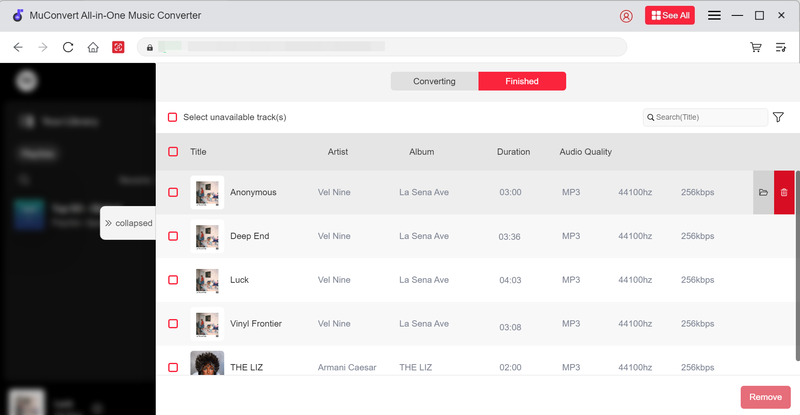
MuConvert YouTube Music Converter can be a viable solution for you to download music from YouTube to Windows 10/11. Also, armed with powerful DRM removal technology, this converter can convert any songs, albums, or playlists from YouTube Music to MP3, M4A, FLAC, WAV, and AIFF. This way you can enjoy your favorite music on your computer without any restriction. Even better, it has embedded the official YouTube Music web player, enabling you to handle the download process more conveniently.
- Download unlimited songs, playlists, and albums from YouTube Music to PC.
- Preserve the lossless audio quality of YouTube music for a crystal-clear listening experience.
- Support batch download playlists and albums from YouTube Music at one click.
- Offer 35X faster download speed to save you valuable time.
- Retain the original ID3 tags for easy music management.
- Provide customizable options for output settings.
As a user-friendly tool, MuConvert requires no complicated steps. We will show you how to download music from YouTube to computers by using it in detail.
Step 1. Access YouTube Music Web Player on MuConvert
To begin with, install MuConvert YouTube Music Downloader on your Windows PC. After you launch it, you will see a few services on the main interface. Choose “YouTube Music” to continue. You can browse the YouTube Music library without signing in.
If you prefer, you can also click “Sign in“ to access your YouTube account, and both free and Premium users are supported.
 100% Secure 100% Secure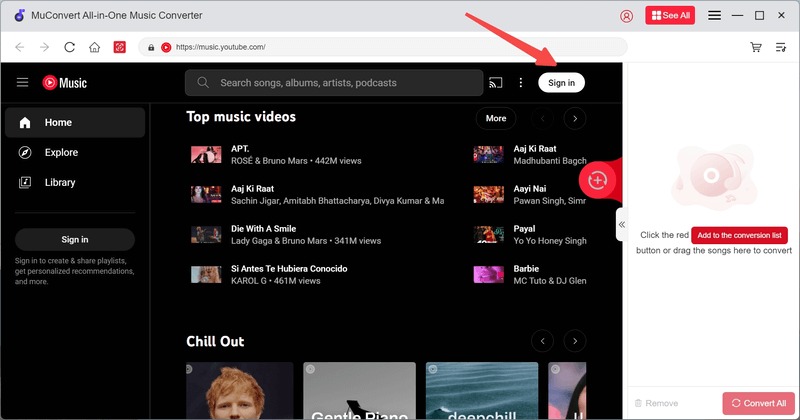
Step 2. Add Songs, Playlists, or Albums to Download
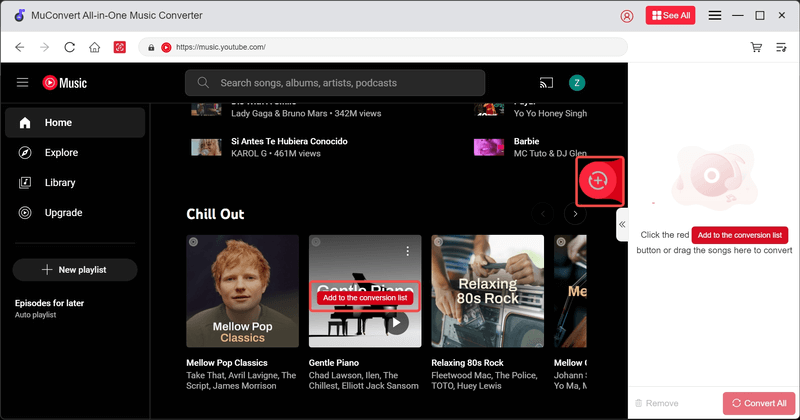
You can enjoy the same browsing experience as you did in the YouTube Music app. Find your favorite song, playlist, or album in the library. Then, hover your mouse over its cover. When the button “Add to the conversion list” shows up, click on it. Or, you can also drag and drop it to the red floating “+” icon on the right side to get things done.
Step 3. Customize Output Settings
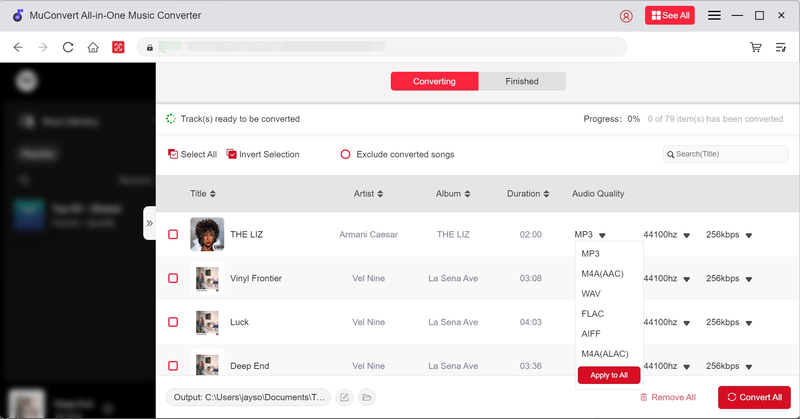
Expand the conversion list on the right to view the default output format, bitrate, and sample rate. You can change these by clicking on the corresponding drop-down menu to select a suitable option. Additionally, if you want to apply your new settings to all the songs you are about to download, select “Apply to All“.
Step 4. Download Music from YouTube Music to your PC
Select all the songs and then “Convert All” to start downloading songs from YouTube to your computer. MuConvert will handle the download process at a 35X faster speed. Once it ends, you can go to the “Finished” tab and click the folder icon to locate your downloads on your computer.
Way 2. Download YouTube Music to Computer with Command Lines
While MuConvert YouTube Music Converter offers a 30-day free trial, you might prefer a free solution. A command-line program like yt-dlp from GitHub can be a powerful alternative. This open-source tool works by extracting the audio streams directly from video links, allowing you to download YouTube music to MP3. With yt-dlp, you can download not only YouTube Music tracks but also regular YouTube videos, playlists, or even entire channels.
The program supports multiple output formats, such as MP3, M4A, or even lossless formats like FLAC, and you can also choose bitrate or audio quality depending on your needs. What’s more, it automatically saves ID3 tags and metadata information, including the song title, artist, and album cover, so your music library stays organized.
Since this is a command-line software, many advanced features you may want—such as batch downloading, download speed control, and subtitle downloading—can all be customized through your own commands. However, because it lacks a graphical interface, the learning curve can be quite steep for beginners or those unfamiliar with command-line operations.
Step 1. Download yt-dlp.exe from GitHub.
Step 2. For a smooth download process, FFmpeg is necessary. Download and extract the ffmpeg.zip file. Locate and copy ffmpeg.exe and ffprobe.exe from the bin folder in the extracted folder. Then, paste it to the same folder as yt-dlp.exe so they can work together.
Step 3. Open Windows File Explorer and navigate to the folder where you downloaded yt-dlp.exe.
Step 4. In the folder address bar, type cmd and press Enter. This will open a command prompt window in that directory.
Step 5. To download music from YouTube, enter the command line like:
yt-dlp -f bestaudio –extract-audio –audio-format mp3 –audio-quality 320k (video URL)
You can simply change the output audio format and bitrate based on your needs.
Step 6. Press the Enter key and run the command line to start the YouTube music download on your computer.
Way 3. Download Music from YouTube to PC with No Software
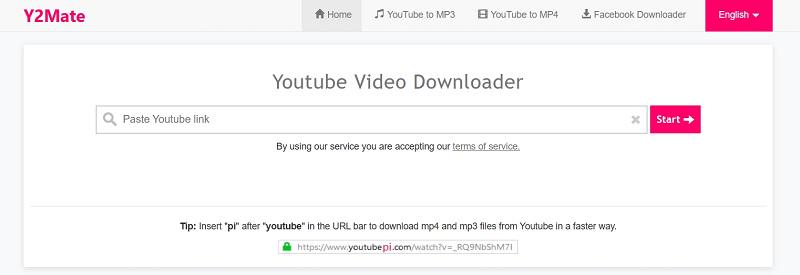
You might also be wondering if there is a way to download music from YouTube to a computer online without downloading and installing any software or plug-in. Actually, there are many online YouTube downloaders available to have you covered. Y2Mate is one of them.
Y2Mate lets you extract audio from YouTube videos and save it as MP3 and other audio formats. The tool supports multiple quality/bitrate options, such as MP3 at 128kbps, 192kbps, or even 320kbps. However, in most cases, the downloads are limited to 128kbps. Some users report that Y2Mate preserves song/track titles and basic metadata in the file name, though it doesn’t always automatically populate full ID3 tags (album, artist, artwork) as desktop software or command-line tools might.
Another advantage is speed and convenience: because it’s web-based, there’s no setup or installation. Conversion is usually quick for shorter videos, and the whole process from pasting the URL to getting the file is straightforward. However, there may be ads, redirects, or pop-ups to watch out for, so be cautious when using it to save music as local files.
Step 1. Go to YouTube and find your favorite songs. Then, copy its video URL.
Step 2. Head to Y2Mate YouTube Video Downloader. Paste the copied URL into the blank field and click “Start”. Then, it will automatically fetch the video information to generate download links.
Step 3. When download options appear, move to the “Audio” section.
Step 4. Click on the “Convert” button to download music from YouTube to Windows 10/11 for free.
Way 4. Download Unofficial YouTube Music Desktop Software to PC
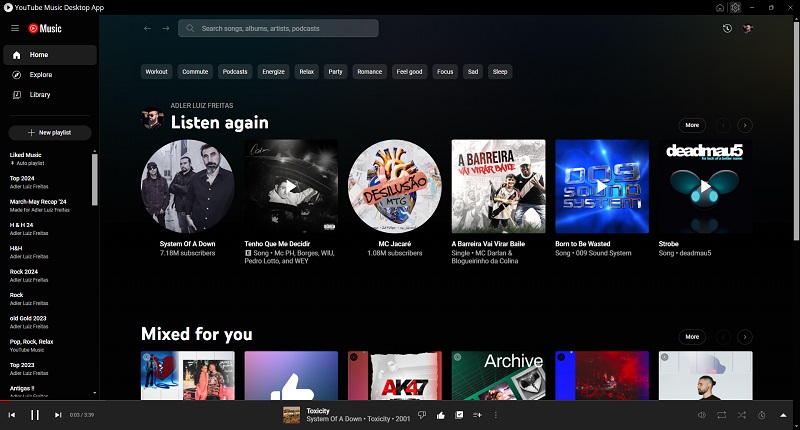
As mentioned earlier, YouTube Music does not offer an official desktop application. However, we’ve found an alternative called YouTube Music Desktop, an unofficial open-source application that embeds YouTube Music into a standalone desktop client for Windows, macOS, and Linux. It provides a convenient way to access YouTube Music directly on your computer, offering a native app-like experience.
The software comes with some handy features such as customizable keyboard shortcuts, system tray integration, desktop notifications, and media keys support, making it easier to control playback without keeping your browser open. It also supports features like dark mode, auto-start, and integration with third-party apps like Last.fm for music scrobbling. It’s important to note that, unlike other solutions, YTMDesktop does not download or convert songs into MP3 files.
Here is how to download YouTube Music Desktop to your PC.
Step 1. Open the YouTube Music Desktop website and click the “DOWNLOAD” button on the main page.
Step 2. The page will then scroll down to the bottom, where you can select the version for your operating system.
Step 3. Once the download is complete, follow the pop-up instructions to install the software.
Side-by-Side Comparison of the 4 Methods
Each of the four methods discussed above comes with its own advantages and limitations. Some tools focus on downloading music in high-quality formats, while others emphasize convenience. To help you quickly decide which solution fits your needs, here’s a side-by-side comparison covering key factors such as what you can download, output formats, audio quality, ID3 tag support, and ease of use. Check them out!
| Available to Download | Output Formats | Output Quality | Download Speed | ID3 Tag Support | Ease of Use | |
| MuConvert YouTube Music Converter | Single songs, playlists, albums and artists’ pages | MP3, M4A, FLAC, WAV, AIFF | up to 320kbps | 35X Faster | Yes | Easy |
| yt-dlp | Single songs | MP3, M4A | depends on your command lines | Fast | Yes | Harder |
| Y2Mate | Mostly single videos (sometimes playlists) | MP3 | up to 320kbps (Mostly 128kbps) | Moderate | Limited | Very easy |
| YTMDesktop | Streams music (no downloads) | N/A | N/A | N/A | N/A | Easy |
FAQs on Download Music from YouTube to PC
1. How to download songs from YouTube for free?
The first three tools introduced above can all help you download songs from YouTube for free. If you only download a song occasionally, then Y2Mate and yt-dlp are good choices. However, if you have higher requirements for ID3 tag retention and output quality, then MuConvert YouTube Music Converter will be more suitable for your needs. Especially when you want to download a large number of playlists or albums, MuConvert’s batch download feature can greatly improve your efficiency.
2. Is there a more efficient way of downloading music from YouTube to Windows 10?
Yes. MuConvert YouTube Music Converter is what you need. It comes with hardware acceleration technology, delivering a 35X faster download speed. Moreover, with a powerful batch download feature, it will be able to download music from YouTube to your PC in a short time.
3. Any Chrome extension to download music from YouTube (not just videos)?
Unfortunately, no. Chrome does not support any YouTube downloads via extensions. In addition, while many extensions from Firefox, Safari, and Edge claim to be able to download music from YouTube to your computer, they usually require additional software support. This makes the download process less convenient than expected.
Conclusion
This article explains how to download music from YouTube to computers. Whether you want to download a single song from YouTube Music or extract audio from YouTube videos, you can easily make it with the help of any method above.
If you are looking for an easy-to-use but powerful downloader, MuConvert YouTube Music Converter is definitely the perfect choice. It not only supports multiple format conversion but also has a batch download feature, so you can easily create your own music library. Download it and give it a try today!
Enjoy YouTube Music in Crystal-Clear MP3 Format
Install MuConvert for free to download YouTube Music in lossless quality and universal formats. Enjoy up to 35X faster conversion!
More Posts
6 Best YouTube Music Downloader Apps for Computer Read More » How to Download Music from YouTube Music (for ALL Users) Read More » Top 8 Free Online YouTube Music Downloaders (Safe & Easy) Read More » 8 Best Music Downloaders or MP3 Download Sites for Computer Read More » How to Download MP3 Songs for Seamless Playback on Any Device Read More »